
Managing WordPress staging and live WordPress sites on unmanaged hosts requires extra care to avoid overwriting live data (orders, registrations, etc.) when deploying changes. Staging sites should be isolated so that real‐time live updates aren’t lost. As one expert notes, “Live Data Sensitivity” (new orders, comments, etc.) and “Database Conflicts” make blind pushes dangerous.
The solution is to sync only what changed: code files or specific tables, while leaving the live database intact. Below is a comparison of popular GUI plugins and recommended Git-based workflows to streamline staging-to-live deployments on VPS or any unmanaged hosts without special built-in tools.
GUI Plugins Comparison
The table below compares leading GUI-based staging/migration plugins and services. We focus on their ease of use, support for selective syncing, rollback capability (backup/restore), and approximate cost. All these tools offer a visual interface for cloning/staging sites and pushing changes, but they vary in how safely they handle dynamic live data.
| Plugin / Service | Key Features & Workflow | Selective Sync / Diff Deploy | Rollback Support | Ease of Use | Pricing (approx.) |
|---|---|---|---|---|---|
| WPvivid Staging & Migration (formerly WordPress Staging Plugin by ATOZ) | All-in-one backup, migration & staging. Create a staging site locally or in a subfolder. Pro version allows pushing changes to live and excluding specific files/folders from sync. Designed to let you choose precisely which themes/plugins/uploads to include. | Yes: Can selectively push files and database tables from staging to live (with pro version). This avoids overwriting new orders or user data. | Yes: Built-in backup/restore before push. (Staging is on same server by default.) | Very easy GUI; straightforward staging setup and push dialogs. | Pro $29/yr (2 sites); one-time $99. Free version can create staging but cannot push to live. |
| WP Staging Pro (by WP-Staging.com) | Premium backup & staging plugin. Creates a full clone in a subdirectory or subdomain. Pro version can push the staging clone to production. Supports excluding tables, folders, or file types when creating the staging copy. | No (full sync only): The push-to-live operation copies the entire staging site (code+DB). You can exclude things when building the staging site, but it does not let you push only parts of a database or individual posts. (All content gets copied.) | Yes: Includes backup & restore of entire site (before pushing). | Very user-friendly wizard to create/localize staging site. Controls to include/exclude tables and files. | €89/yr personal (1 site); €139/yr business; €239/yr developer (multi-site, cloud backups). Free version can clone but cannot push to live. |
| BlogVault (Staging & Migrations) | Hosted service + plugin that provides off-site backups, uptime monitoring, and an integrated staging environment. One-click “Merge” from staging to live. Supports incremental backups and WooCommerce safeguards. | Limited: BlogVault’s staging merge is all-or-nothing by default (it overwrites live with staging copy). They caution that for dynamic sites (e.g. WooCommerce), blindly merging can overwrite orders. Instead, they recommend manually reapplying only the tested changes on live to avoid data loss. (No built-in table-level diff.) | Yes: Includes real-time incremental backups (especially for WooCommerce), with one-click restore for rollback if needed. | Very simple web UI; fully managed. Create and merge staging in one click. | Starts at $89/yr for basic (1 site, daily backups, 1 staging). Higher plans ($149–$399/yr) add features/security. |
| WP Time Capsule | Incremental backup plugin with staging support. Lets you create a staging clone in a subdirectory. On push-to-live, you can exclude specific database tables (so orders, sessions stay intact). Stores backups in cloud (S3/Dropbox/etc.) | Yes: When deploying, you can choose to exclude selected DB tables. Good for small changes (e.g. plugin/theme updates) on live without clobbering content. | Yes: Incremental backups + scheduled restore. Each plan includes 30–365 day restore points. | Simple interface; mainly for backups. Staging feature is basic but straightforward. | $49/yr (2 sites, 30-day backup window); $99/yr (10 sites); $199/yr (unlimited). |
| All-in-One WP Migration | Very popular drag-&-drop site exporter/importer. Exports entire site (files+DB) to file or cloud. User-friendly interface with built-in search/replace for URLs. | No: By default it migrates the whole site. (Has no native GUI for partial sync or skipping new orders.) Add-on extensions can remove the file size limit, but the tool is intended for full moves, not incremental staging pushes. | No built-in: (To rollback, you must manually re-import an earlier export.) | Very easy drag-and-drop UI for import/export. | Core plugin is free. “Unlimited” add-on to remove size limits is $69/yr; other add-ons (cloud, FTP, etc.) start at ~$99/yr. |
| WP Migrate DB Pro (Delicious Brains) | Developer-focused migration plugin. Provides push/pull of database with search/replace in a click. Add-ons allow pushing media library or theme/plugin files to avoid FTP. WP-CLI integration for automation. | Yes: You can choose which tables (and files via add-ons) to push or pull. E.g. pull only new orders or skip certain tables. (Supports serialized data safely.) | Yes: Optionally backs up DB before each push. | GUI is more technical (aimed at devs), but very powerful. Excellent for selective table sync and scripted deploys. | $99–$199/yr (1–2 site licenses). Media/CLI/File Add-ons sold separately. |
Each of the above plugins provides a graphical workflow. In general, WPvivid and WP Migrate DB Pro offer the most control over exactly what gets synced from staging to live (allowing file-only or table-by-table deploys). WP Staging Pro and All-in-One WP Migration prioritize ease of use but essentially copy the whole staging site. BlogVault is very beginner-friendly for backups and cloud staging, but its one-click merge will overwrite any new live data (so is best for static sites). All these solutions include backup/restore features so you can roll back if a deployment goes wrong.
WordPress Git-Based Staging Workflows
For developers or advanced users, a Git-centric workflow can save time and reduce complexity by automating deployments. A common pattern is:
- Local Development Environment: Use LocalWP (by WP Engine) or similar tools (XAMPP, Valet, Docker) for building the site. LocalWP integrates Git: you can version your codebase (WordPress core, themes, plugins, code changes) in a repository.
- Version Control: Commit changes to GitHub/GitLab. This lets you review and merge feature branches, and track who changed what.
- Continuous Deployment: Configure a CI/CD pipeline (e.g. GitHub Actions, GitLab CI, BuddyWorks) that triggers on merges to the main branch. For example, a GitHub Action can SSH into your server and run
rsyncto sync only changed files (excluding uploads or other live data). Store SSH keys in GitHub Secrets for security. - WP-CLI Automation: Include WP-CLI steps in your deploy script. For example, after rsync’ing code, run
wp core update-dborwp plugin updateon the live site via SSH to apply any database migrations. You can also usewp search-replaceto fix URLs. WP-CLI lets you script tasks so you don’t have to run them manually. - Environment Tools: Consider more advanced stacks like Bedrock/Trellis. Trellis (Ansible-based) can fully provision servers and deploy WordPress code via Git. As one reviewer noted, “Trellis provides a dead simple way to provision WordPress servers” so you never manually patch servers. Bedrock adds Composer-based dependency management. This approach requires more setup initially but ensures parity between dev/staging/production.
Advantages of this approach: Every deployment is tied to a Git commit, making rollbacks as simple as reverting code. It also eliminates manual FTP/SFTP. Using GitHub Actions to deploy via SSH, citing benefits like automation, consistency, and versioned releases. In practice, once set up, developers can update code, commit, and let CI push the new code to the server – freeing less technical staff from fiddling with plugins.
WordPress Staging-to-Live Deployment Flow
Below is a sample flow combining both GUI and Git methods. The goal is to deploy new code while preserving live data (orders, user accounts, etc.):
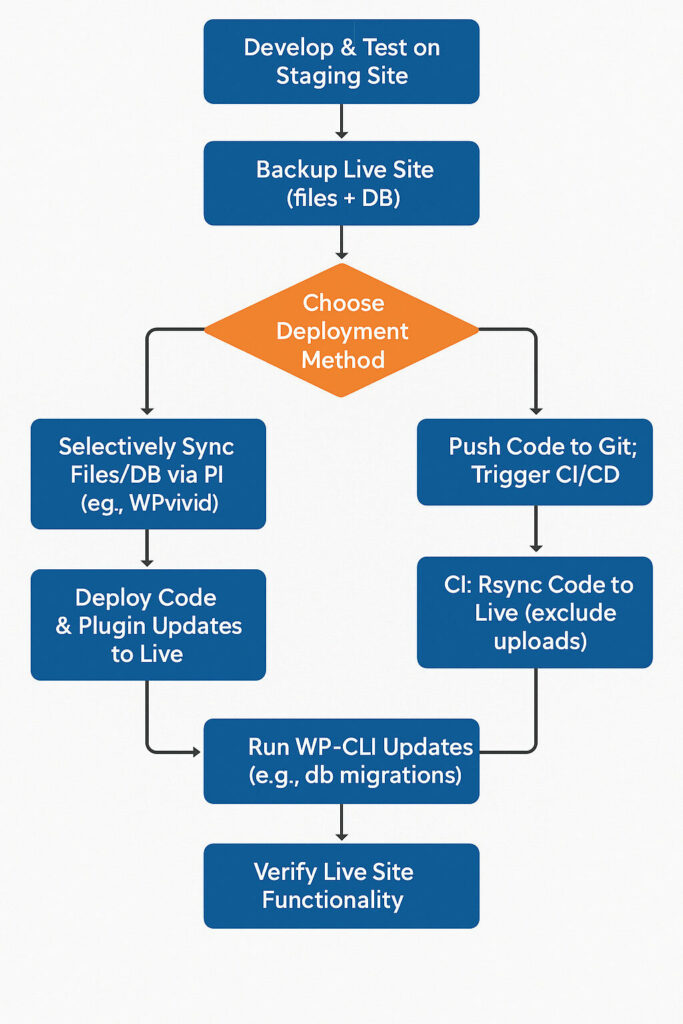
- Preparation: First, make a full backup of the live site (using your plugin or
wp-cli). This ensures you can roll back if needed. - Choose deployment path:
- GUI Plugin Path: In the staging environment plugin (e.g. WPvivid Staging Pro), select exactly which files or database tables to push. For example, push the updated theme/plugin files but exclude the orders and user tables. Execute the push; the plugin will copy those assets to production.
- Git/CI Path: Commit all tested code changes to your Git repo. A CI workflow connects to the live server (via SSH) and runs an
rsync(or similar) to update only the changed files. An exclude list (e.g./wp-content/uploads) ensures that current user uploads are not overwritten.
- Post-Deploy Steps: After code is in place on live, run any necessary migrations. For example, use
wp plugin update --allorwp core update-dbvia WP-CLI to apply database schema changes. - Verification: Thoroughly test the live site. Check that dynamic content (orders, posts, comments) from the backup is still present and new features are working. If anything broke, restore from the backup or roll back the Git commit.
This flow ensures code and configuration changes go live, while live data is preserved. It combines the ease of a GUI tool (for non-technical users) with the precision of a Git-based deploy (for developers). By using selective sync (either via plugin settings or rsync excludes) and automated scripts, teams can minimize manual steps and avoid costly mistakes when migrating between staging and production.
